How to Add Owners or Managers
Go to your Google Business Profile
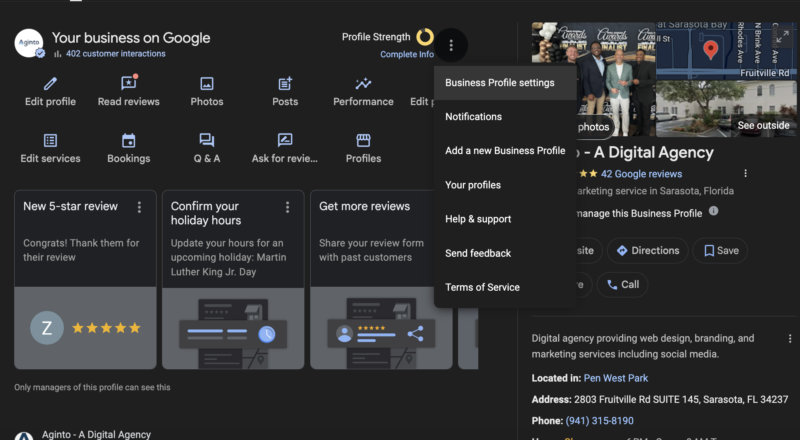
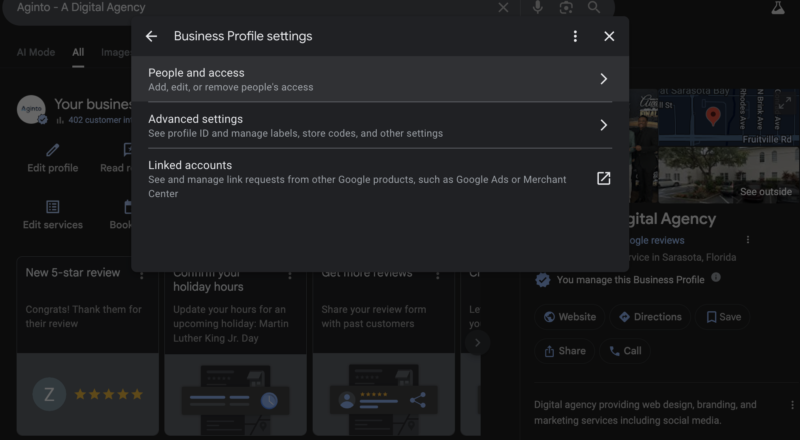
- Select More → Business Profile settings → People and access
- Click Add user
- Enter the user’s email address
- Choose Owner or Manager
- Select Invite
Helpful tips:
- Invited users can accept immediately and will receive an email confirmation
- You can view active users and pending invitations on the “People and access” page
- To cancel a pending invite, locate the user under Pending and select Cancel invitation
- To assign a new primary owner, learn how to transfer ownership of a Business Profile
Change Access Roles for Existing Users
Only owners can change access levels.
Steps:
- Open your Business Profile
- Select More → Business Profile settings → People and access
- Choose the user
- Next to “Access,” select Edit
- Select the new role and click Save
Remove an Owner or Manager
- Open your Business Profile
- Select More → Business Profile settings → People and access
- Select the user
- Click Remove person
Important notes:
- If you can’t remove a user, you likely have manager-level access
- Only owners can remove other users
- Removed users will receive an email notification
- Previous actions (reviews, posts, replies) remain visible on the profile
Remove Yourself from a Business Profile
Important:
If you are the primary owner, you must transfer primary ownership before removing yourself.
Learn how to transfer primary ownership of a Business Profile.
Steps:
- Go to People and access
- Select your name
- Choose Stop managing
- Confirm
Once removed, you will no longer be able to edit business information. Your past contributions (reviews, posts, replies) will remain visible.
Learn how to edit or delete your Google Maps reviews and ratings.
Access Limits for New Owners & Managers
Newly added owners and managers must wait 7 days before performing certain administrative actions.
During this period, you cannot:
- Delete or restore a Business Profile
- Remove other users
- Transfer primary ownership
If a new user deletes their Google Account during the first 7 days, they will be automatically removed and must be re-added.
If you own a Google Business Profile, you can grant other users access as owners or managers. Adding the right users allows your team or agency partners to manage daily operations—without sharing passwords—while keeping control over sensitive permissions.
Each person must use their own Google Account to access a Business Profile.
Learn how to create a Google Account.
Understand Owner vs. Manager Roles
Google Business Profiles support two primary access roles. Choosing the right one helps protect your account while still enabling collaboration.
Owners
Owners have full administrative control over the Business Profile. This includes the ability to manage users, update business information, and delete the profile if needed.
Key notes:
- A Business Profile can have multiple owners
- Only one primary owner can exist at a time
- You must have at least one additional owner or manager before transferring primary ownership. Learn how to transfer primary ownership of a Business Profile.
Managers
Managers (previously called site managers) can perform most day-to-day actions but have limited administrative authority.
Managers cannot:
- Add or remove users
- Delete the Business Profile
Important limitation:
You can’t assign Google Groups as owners or managers.
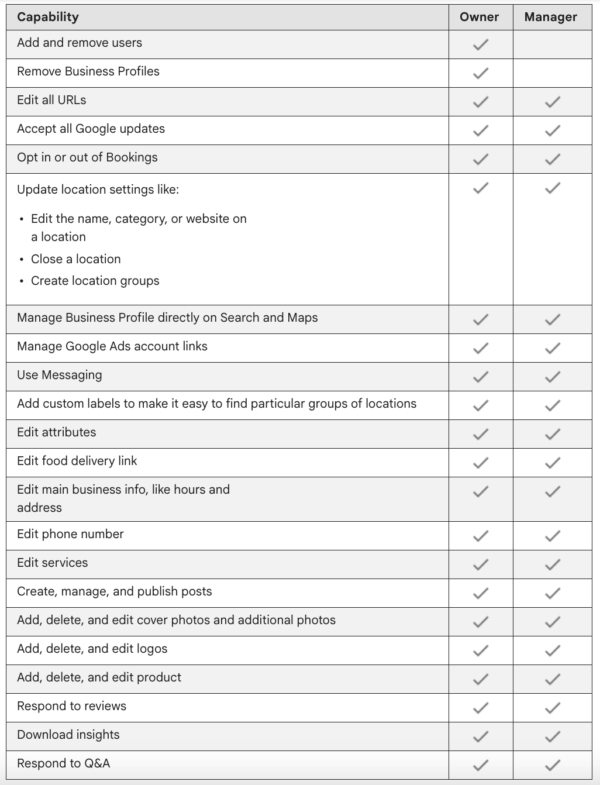
Owner & Manager Permissions Breakdown
Both owners and managers can manage the majority of business-facing features, including:
- Editing business info (hours, address, phone number, services)
- Responding to reviews and Q&A
- Publishing posts and uploading photos
- Managing attributes, products, and food delivery links
- Using messaging
- Viewing and downloading insights
- Managing the profile directly from Google Search and Maps
- Managing linked Google Ads account
Owner-only permissions include:
- Adding or removing users
- Deleting the Business Profile
- Transferring primary ownership